


How to Run Extensions in Incognito Mode in Chrome?
To briefly explain the hidden mode of Chrome, it is the mode that prevents websites or extensions related to our topic from accessing your personal data. For example, if you go to a website in Chrome incognito mode, sites cannot copy or store anything from this visit. For example, the domain name you entered is not kept. Passwords are not saved. The mode with security measures like this is Chrome Incognito Mode.
We said that the extensions are not working in Chrome incognito mode. However, this is the feature set by default. So you can turn on this feature and use extensions in Chrome incognito mode.
Open Chrome and enter the settings with 3 dots in the top right. In the small page that opens, go to More tools extensions. Or type chrome: // extensions / in the browser address line and press enter. You can go directly to the relevant page. In this section, after entering the detail page of the extension you want to use in incognito mode, continue with the allow in incognito mode option. The process is that simple.
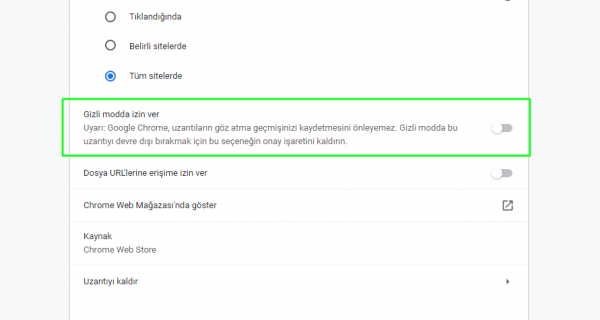
There are a few warnings about these explanations. If you run an extension in stealth mode, you need to know that stealth mode has no meaning. Because this extension can access your information. Therefore, do not run an extension in incognito mode unless it is necessary.
Comments0
No Comments Yet
Be the first to share your thoughts.
Please sign in or sign up to leave a comment.